Running RF Swift on QubesOS
Run RF Swift with Podman in a QubesOS AppVM, with USB radios attached from dom0.
This guide sets up RF Swift on QubesOS in five steps. You create a TemplateVM that holds the dependencies, then an AppVM that holds RF Swift and its images, attach your USB radio to it, and run your first container.
Why Podman? It is the preferred engine on QubesOS: it runs rootless without any issues. See Using Podman for general Podman guidance.
Before you start: plan about 90 GB of private storage for the AppVM if you want room for all images (less if you only need one or two).
Create a TemplateVM for the dependencies
The TemplateVM is where Podman and RF Swift’s dependencies are installed. AppVMs based on it inherit them.
Go to Menu > QubesOS Tools > Qube Manager > New qube:
- Name it something recognizable (for example
rfswift-template). - Choose a color for this domain.
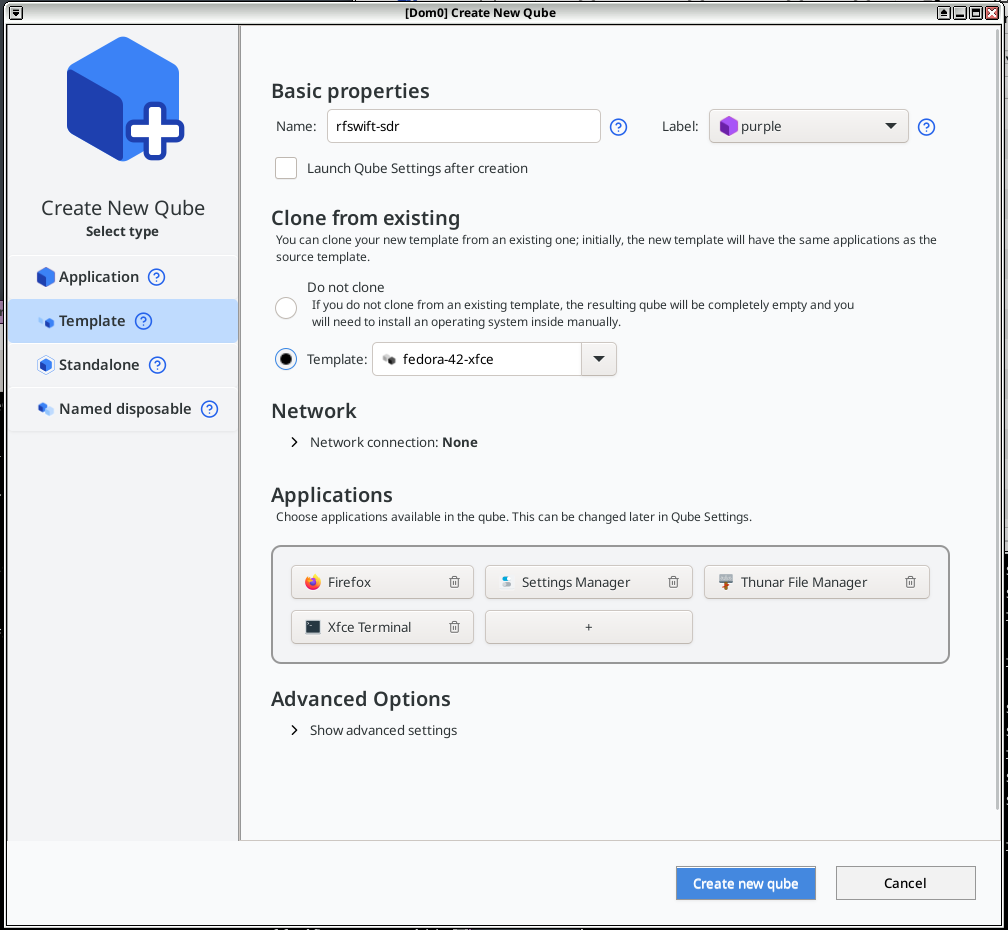
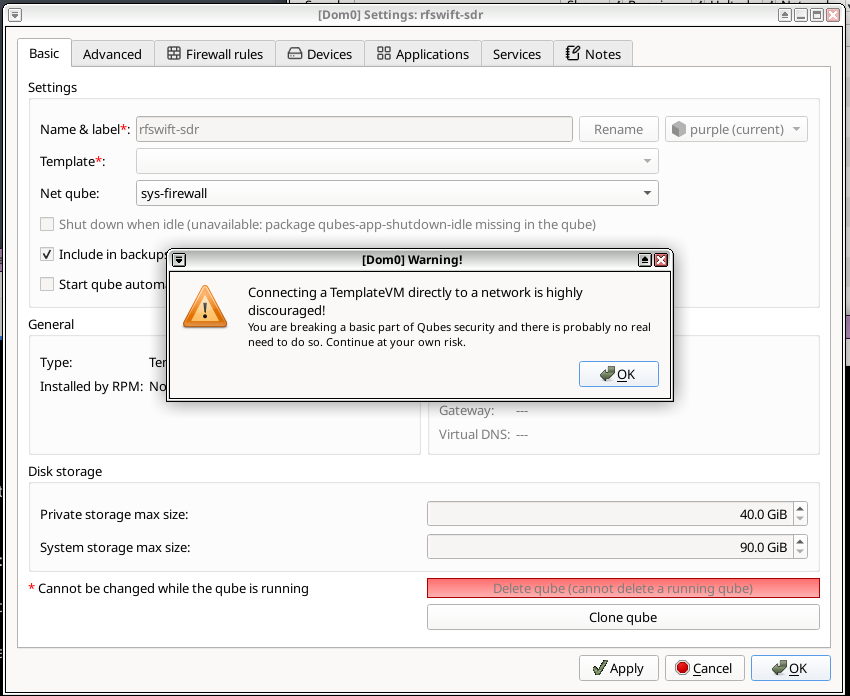
- Give this TemplateVM network access temporarily, so it can install dependencies.
Then open a terminal in the TemplateVM and run:
curl -fsSL "https://raw.githubusercontent.com/PentHertz/RF-Swift/refs/heads/main/get_rfswift.sh" | sh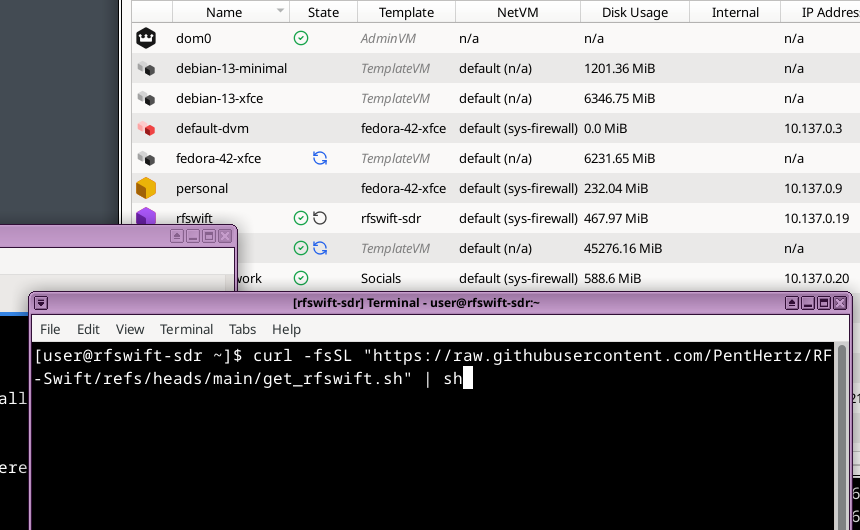
The RF Swift binary and images will not persist in the TemplateVM. The script is only used here to install the system dependencies (Podman, libraries, etc.) that AppVMs inherit.
When it’s done, switch the TemplateVM network back to “none” and shut it down.
Create an AppVM for RF Swift
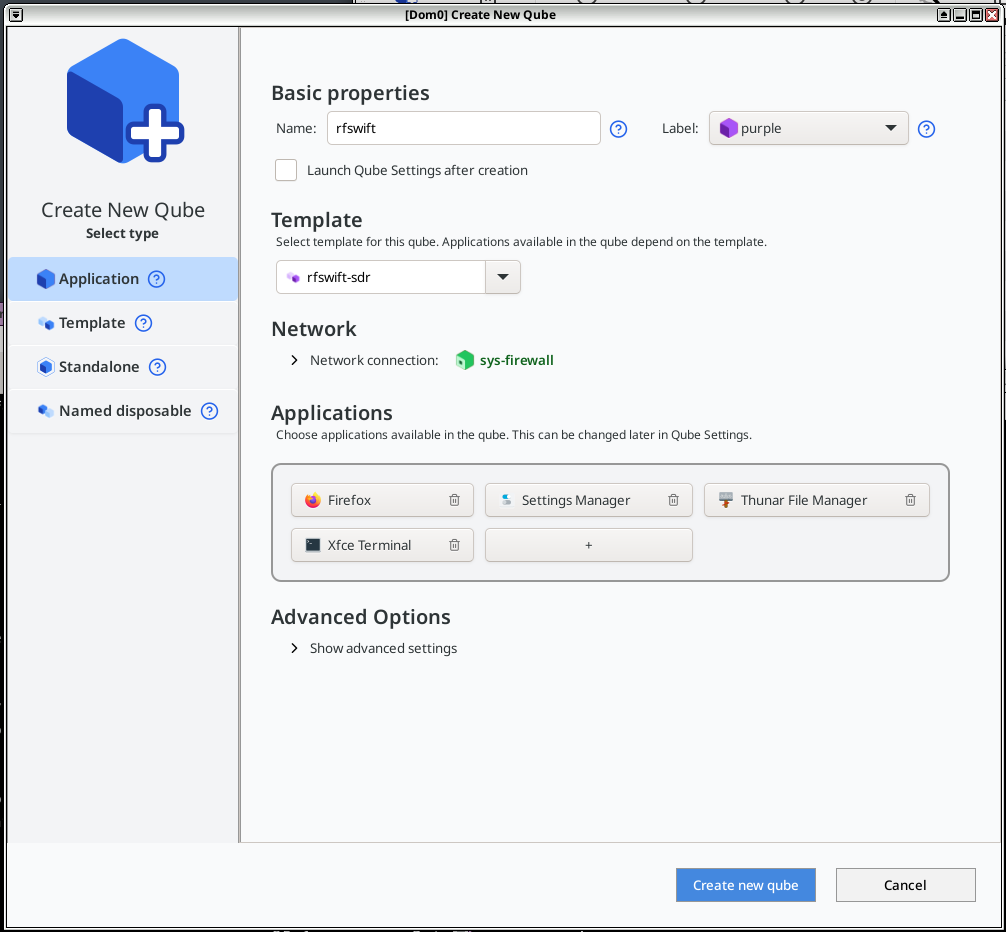
The AppVM holds the RF Swift binary and your images. Go to Menu > QubesOS Tools > Qube Manager > New qube:
- Name it (for example
rfswift) and choose a color to recognize the domain. - Use the TemplateVM you just created as its template, to inherit the dependencies.
- Set networking to
sys-firewall(needed to pull images).
Resize its storage. Depending on the images you want, you may need more space. In a dom0 terminal:
qvm-volume resize rfswift:private 90GB
qvm-volume resize rfswift:root 20GB
Adjust the sizes to your needs: 90GB of private storage holds all images comfortably.
Install RF Swift and pull images
Open a terminal in the new AppVM and install RF Swift:
curl -fsSL "https://raw.githubusercontent.com/PentHertz/RF-Swift/refs/heads/main/get_rfswift.sh" | shThen pull the image(s) you want:
rfswift image pull -i sdr_fullOther images include sdr_light, rfid, bluetooth, wifi and more: see Choose a toolbox.
Attach your USB device to the AppVM
A container can only use a device that is attached to its AppVM first.
With the GUI:
- Plug in your SDR device.
- Left-click the Devices icon in the system tray.
- Find your device (for example HackRF or RTL-SDR).
- Select Attach to rfswift (or your AppVM’s name).
With the CLI (dom0):
# List available USB devices
qvm-usb list

# Attach to your AppVM
qvm-usb attach rfswift sys-usb:2-1
Create a container and start your tools
With the device attached, start the wizard:
rfswift container create(rfswift run is the older spelling and still works.) The TUI guides you through the options:
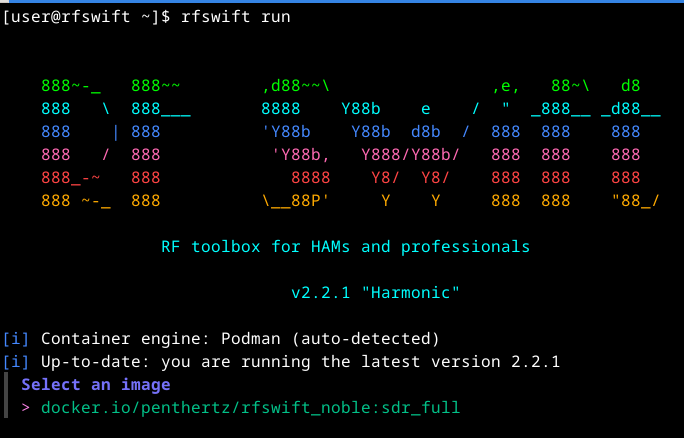
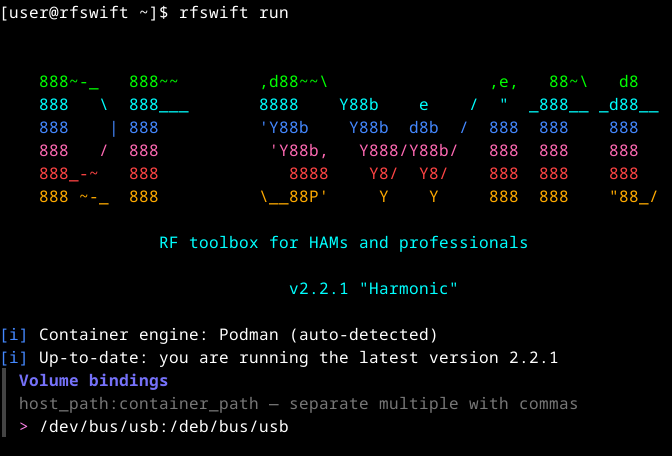
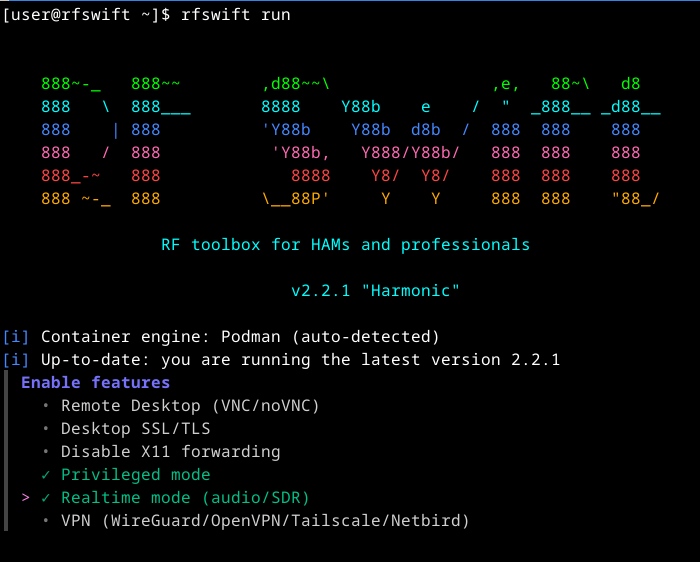
Key settings:
- Device mount: use
/dev/bus/usb:/dev/bus/usbto pass all USB devices to the container.
- Privileged mode: enable it to use the X11 display and USB devices.
- Realtime mode: optionally enable it to boost container processing performance.
Then start your tools inside the container:
sdrpp             # SDR++
urh               # Universal Radio Hacker
cyberether        # CyberEther
hackrf_info       # Test HackRF
rtl_test -t       # Test RTL-SDR
What it looks like
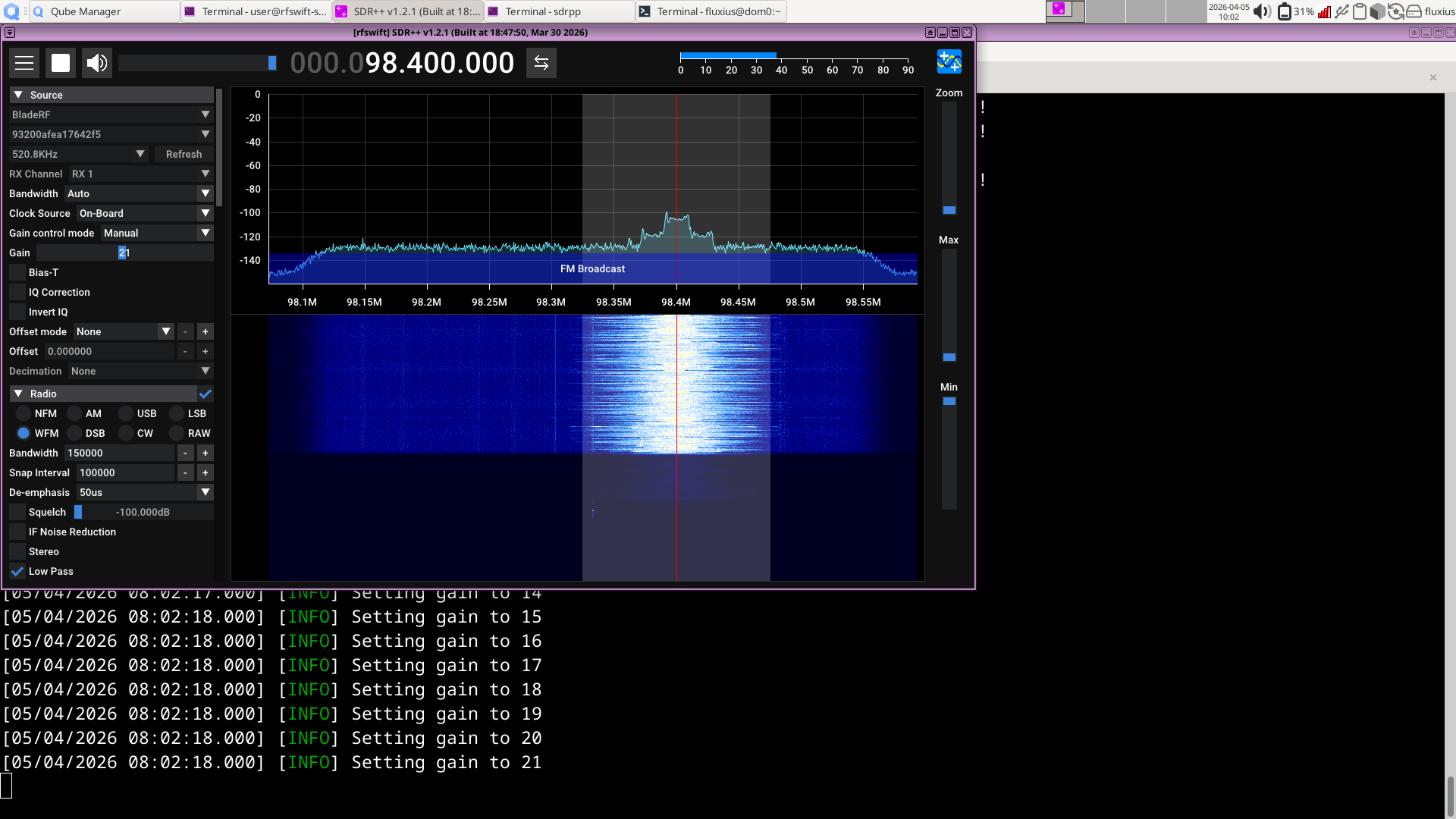
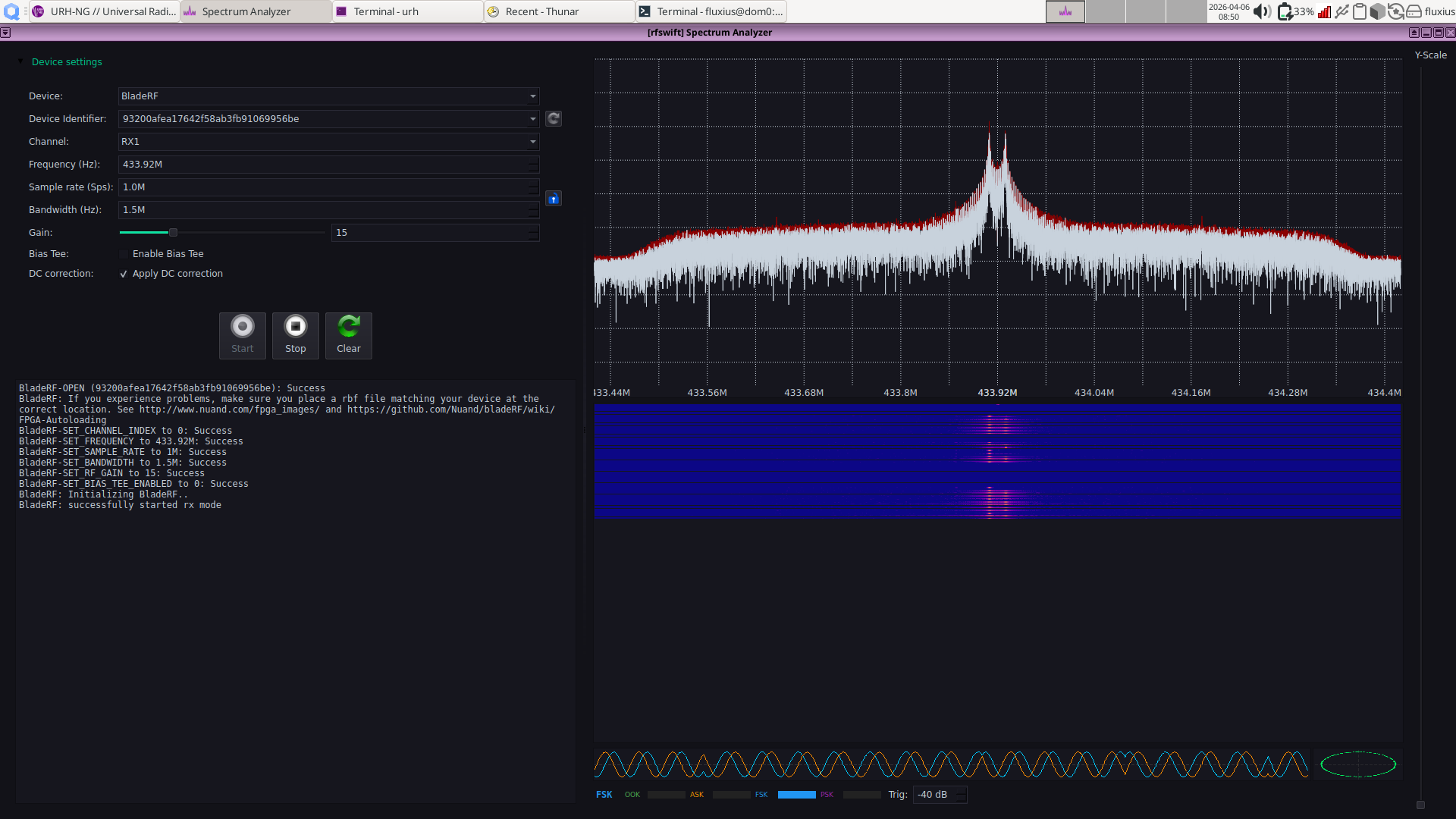
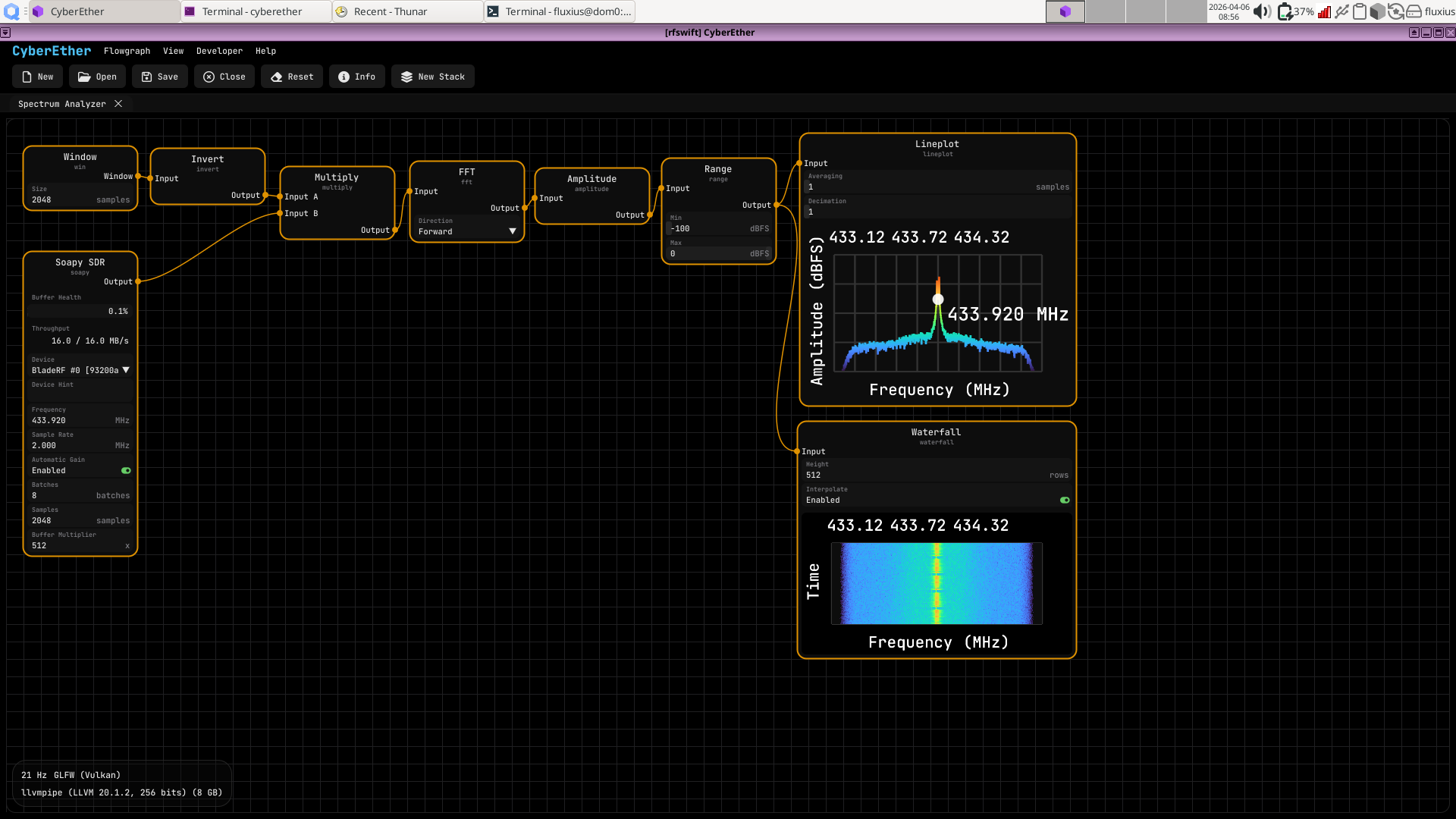
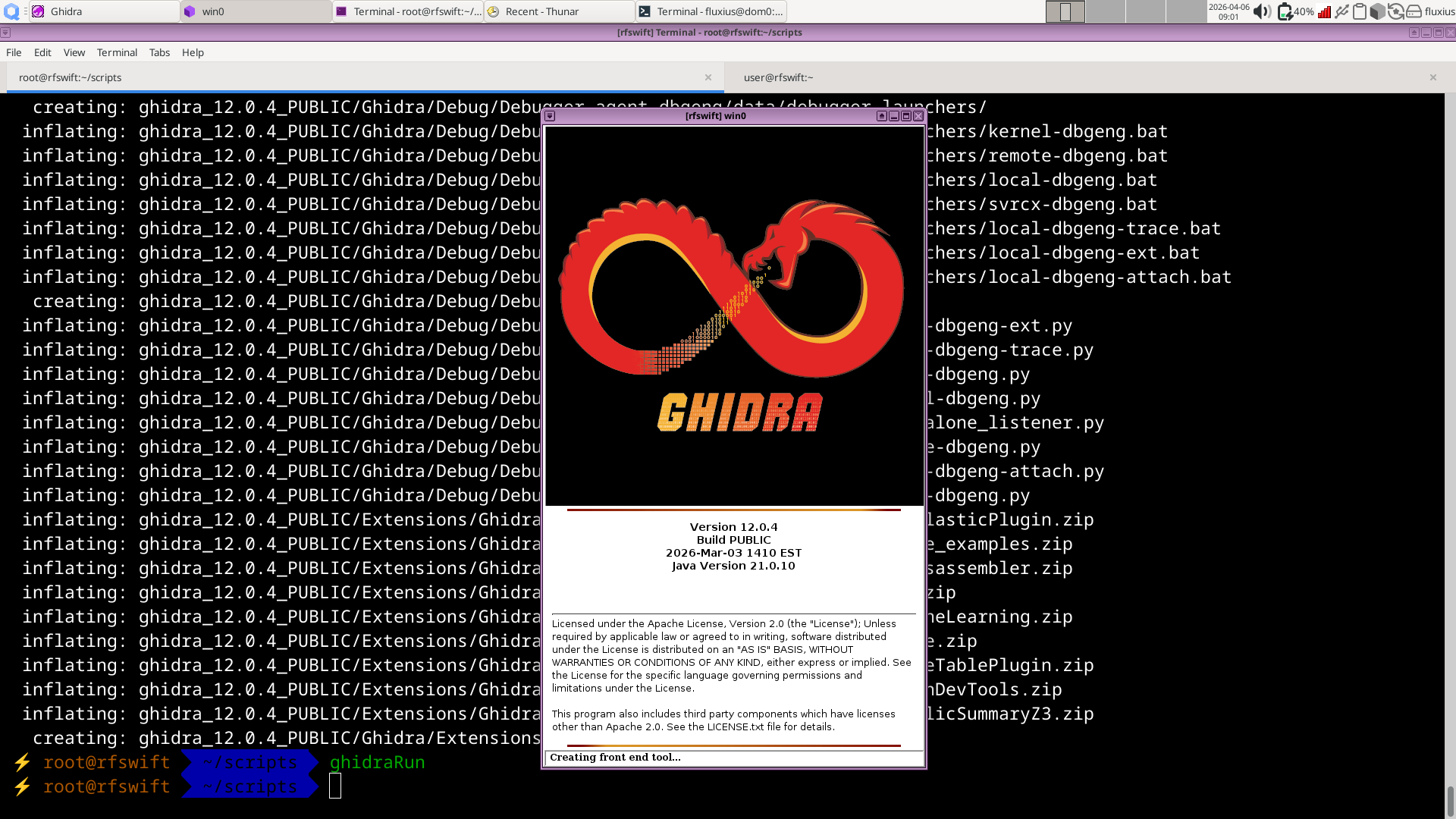
You can also install more software later in the same container, like Ghidra:
Troubleshooting
USB device not visible in the container
- Check that the device is attached to the AppVM:
lsusb. - Make sure you used
/dev/bus/usb:/dev/bus/usbas device mount when creating the container. - Try enabling Privileged mode.
“No space left on device”
Increase the storage in dom0:
qvm-volume resize rfswift:private 50GClean up unused images:
rfswift system cleanup imagesContainer networking fails
Check that your AppVM has a NetVM assigned:
# In dom0
qvm-prefs rfswift netvm
Related
- Using Podman: Podman-specific guidance
- Air-gapped installation: offline image transfer
- Running RF Swift: general usage guide
- Change a container after creation: add devices and capabilities later